Add your courses and scorecard
Your courses’ tees and holes, read from a scorecard photo or typed in, with hole photos and a printable scorecard, published on their own.
1 min read · Paid plan · Checked on 16 Nov 2026
1. Open your courses
Click Golf Modules, then Courses and Manage courses. Each course you gave while building your website is listed: click Open … to see it.
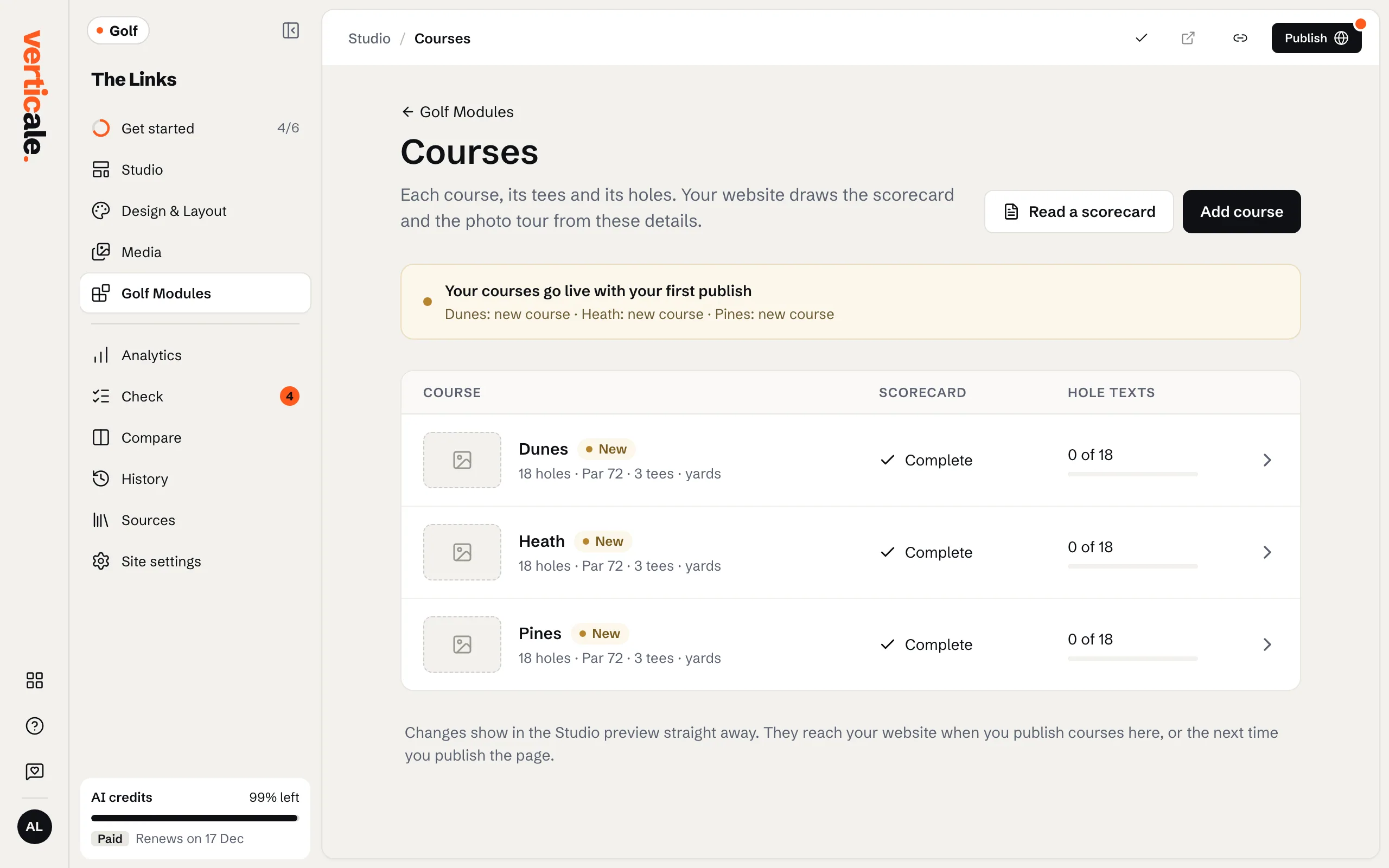
2. Fill in the holes
On Holes, type each hole’s par and yardages, tee by tee. Faster: Read a scorecard, then Use a photo instead, upload a photo of your scorecard under A photo of your scorecard, choose which course it fills in Fill which course?, and click Read the scorecard.
3. Check what was read
Numbers we weren’t sure of are marked To check. Look at each one, correct it or click Keep …. When nothing is left to check, the course says Complete.
4. Photos and the printable scorecard
- Add hole photos, then Choose hole photos: a number in the file name, like
hole-7.jpg, puts the photo on that hole. - On Course details, Add a PDF of your printable scorecard: your page links to it.
5. Publish your courses
Click Publish courses. Your courses go online right away, without publishing the whole page. Discard changes drops edits you haven’t published.