Publish your website
Put your draft online on your website’s address, and publish again whenever you’ve changed something.
1 min read · Paid plan · Checked on 16 Nov 2026
Changes you make in the Studio stay in your draft. Your visitors see them only when you publish.
1. Choose the Paid plan, the first time
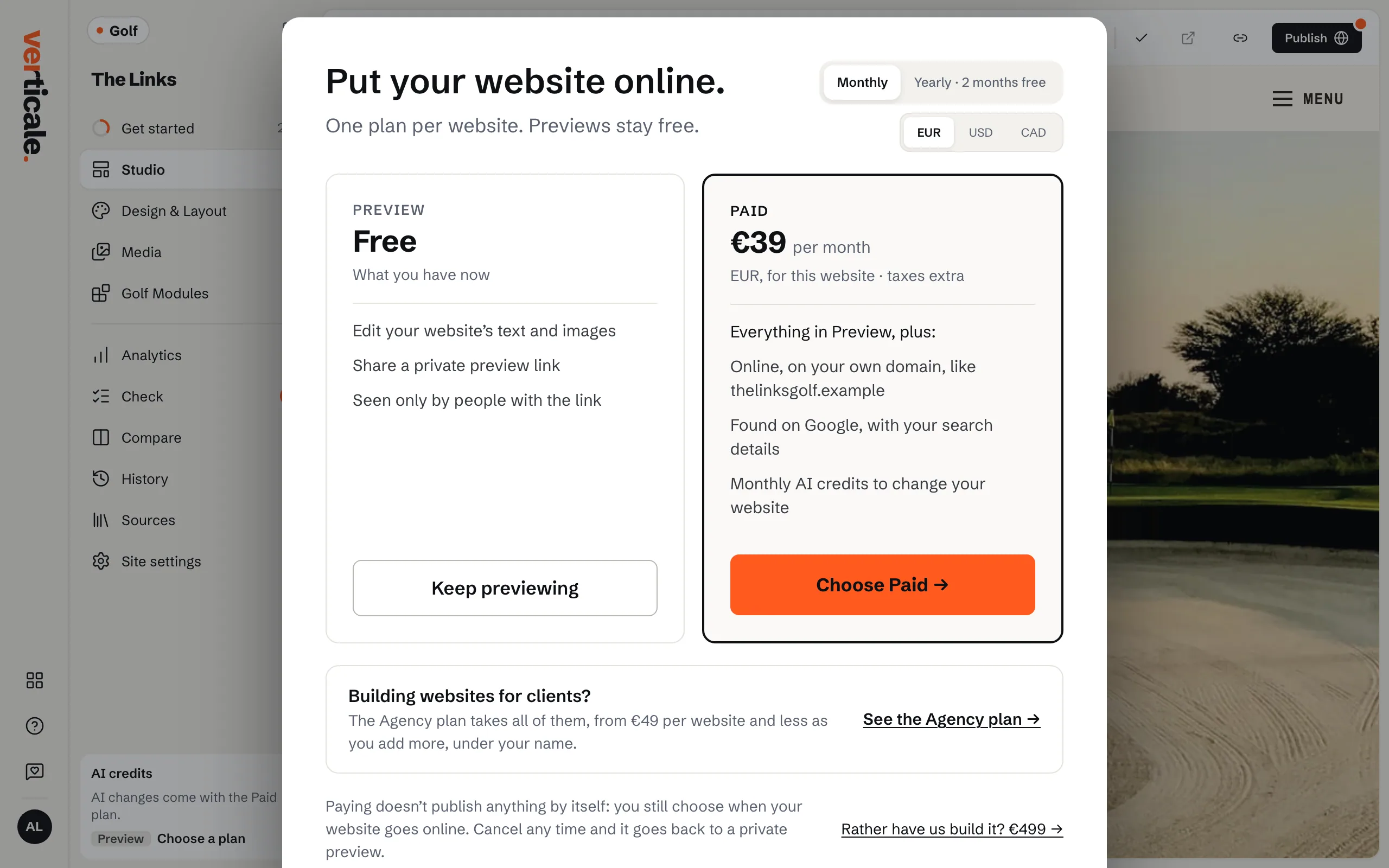
Publishing needs the Paid plan. The first time you click Publish, you see Put your website online. with the plan. Choose monthly or Yearly · 2 months free, then Choose Paid → and pay on Stripe’s page. Paying publishes nothing by itself: you come back to your draft. See Plans and AI credits.
2. Publish
Click Publish at the top of the Studio, then Publish now.
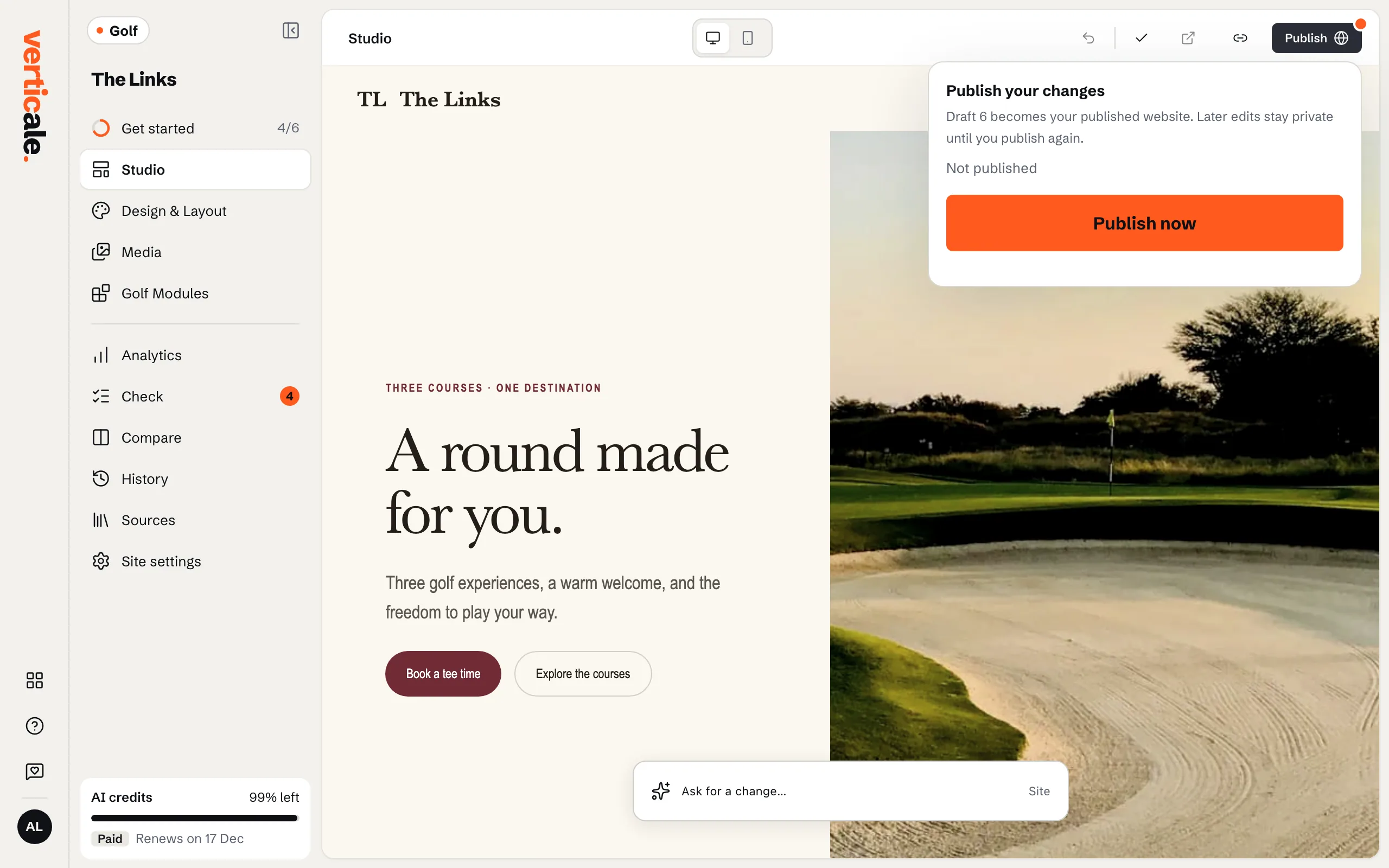
If your page links to other websites, they’re listed under Links to other websites: check they’re yours before your visitors follow them. Show points each one out on your page. The list never stops you publishing.
3. See it online
The top bar now says Published v1. Click View published site to open it on its own address, like the-links.verticale.page. To use your club’s own domain, see Connect your own domain.

Publish again after a change
Edits after publishing show as Unpublished changes. Click Publish, then Publish now again when you’re ready.