Add a second language
Translate your whole website into a second language with AI, switch between the two in the Studio, and keep both up to date.
1 min read · Paid plan · Checked on 16 Nov 2026
1. Add the language
Click Site settings, then Languages. Choose it in Add a language, click Translate and add, and confirm. We translate your page’s texts, its search title and description, and its photo descriptions. It takes about a minute and usually uses 1 AI credit.
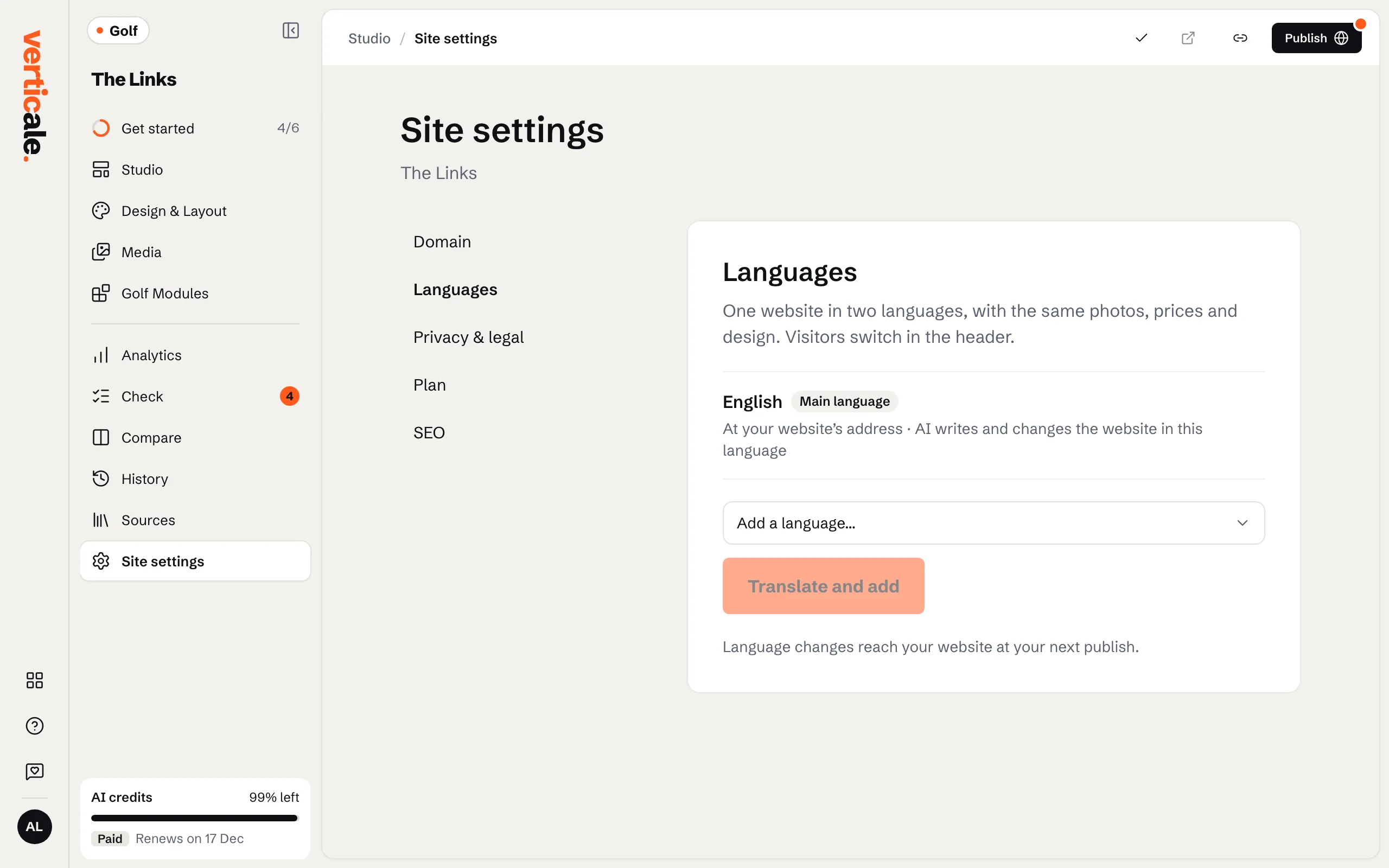
When it’s done: Your website is translated into …. Make main swaps which language comes first.
2. Switch and edit
In the Studio, Website language, at the top, switches the page between your two languages. Edit each one by hand, as usual.
3. Keep them in step
After you change your main language, the top bar shows how many texts are left to translate. Click Translate the changes: texts you rewrote by hand in the second language are kept.
Online
Publish, and the second language has its own address, like /en/. Visitors switch with the links in your header.