Replace an image
Swap any photo on your page for one of yours, one already on your website, or one from the golf image bank, and describe it for visitors who can’t see it.
1 min read · Every plan · Checked on 16 Nov 2026
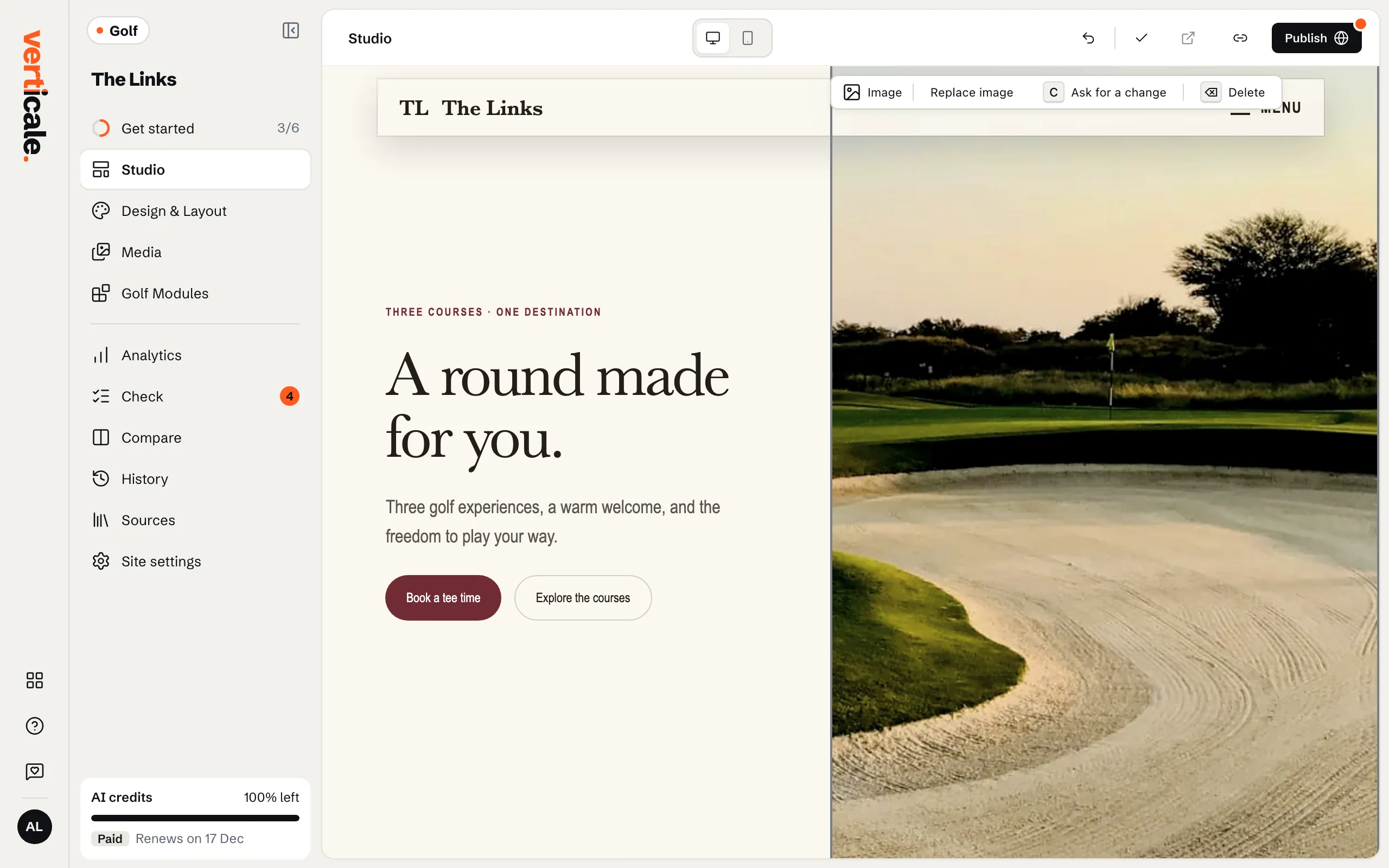
1. Select the photo
In the Studio, click the photo. Its bar shows Replace image.
2. Choose the new one
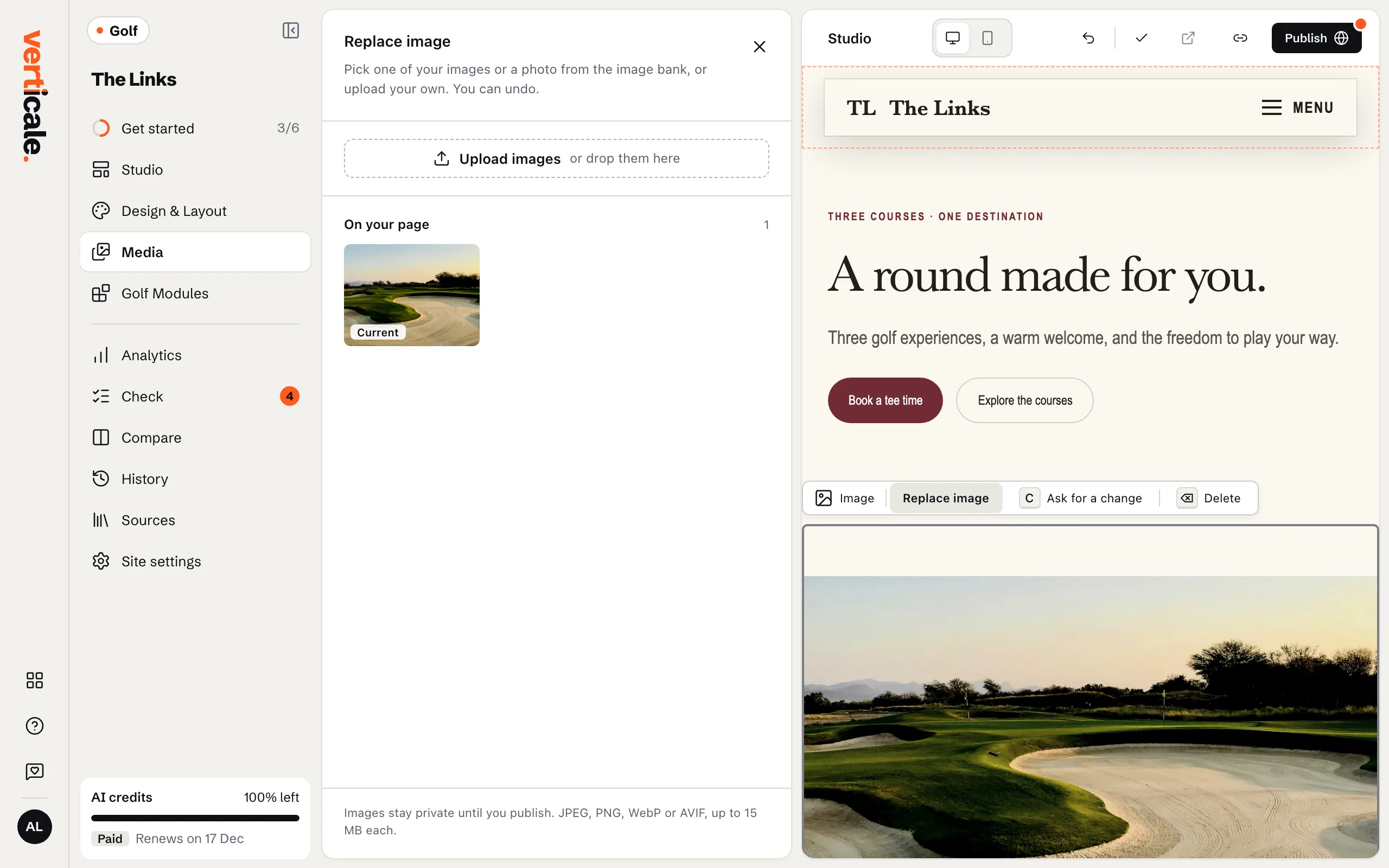
Click Replace image. A panel opens beside your page:
- Upload images (or drop them on the panel): a single photo replaces the selected one at once.
- This website: every photo already on your website.
- Golf image bank: photos of golf you can use freely.
Click a photo to use it.
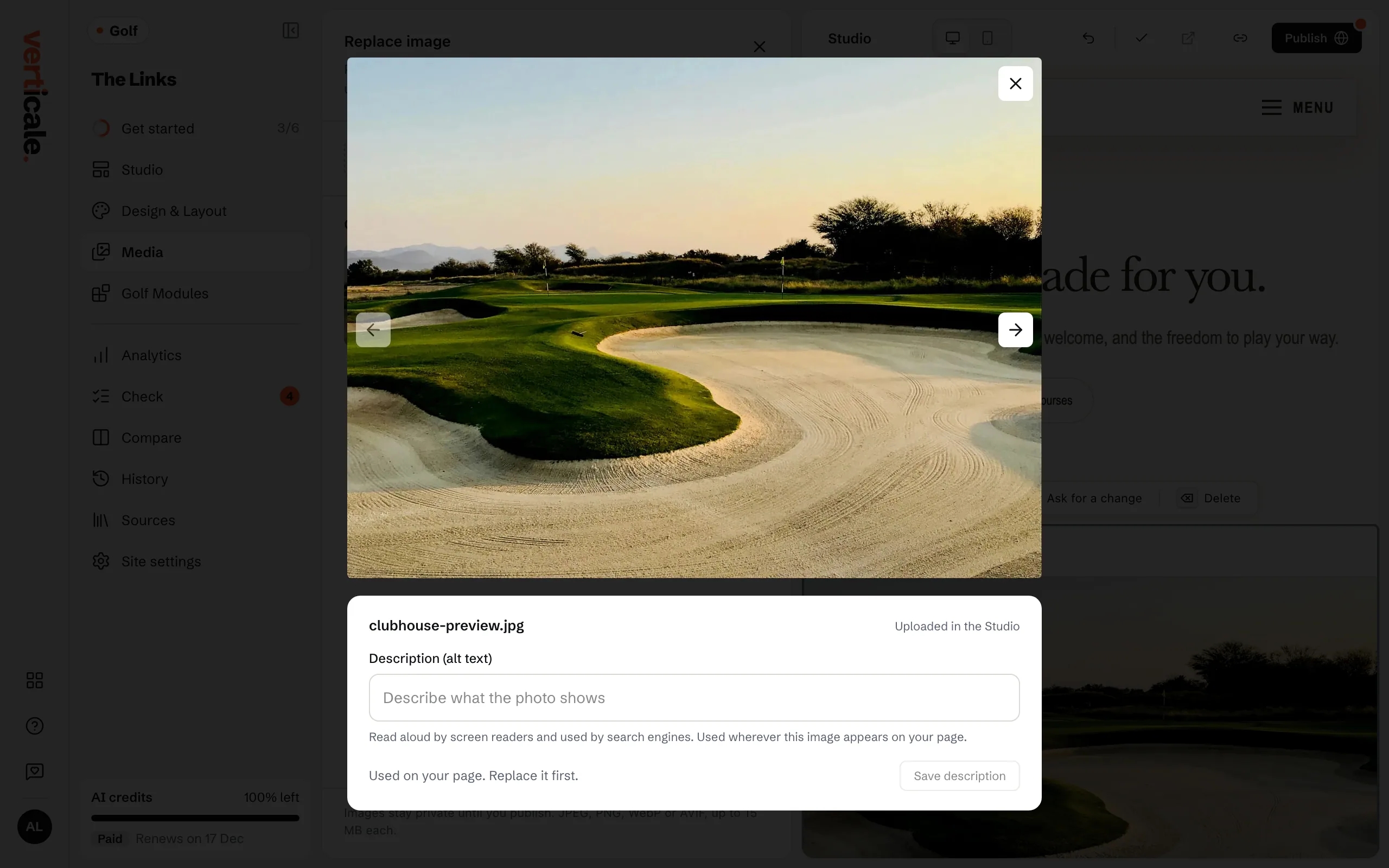
3. Describe it
Visitors who can’t see photos, and search engines, read its description. Open Media in the Studio’s tools, click the photo, and write what it shows in Description (alt text). Click Save description, or simply close it.