Delete an element or a section
Remove a text, a photo, a button or a whole section without AI, and bring it back with Undo.
1 min read · Every plan · Checked on 16 Nov 2026
1. Select what to remove
Click the element on your page. To select its whole section, click the section around it, outside any text or photo.
2. Delete it
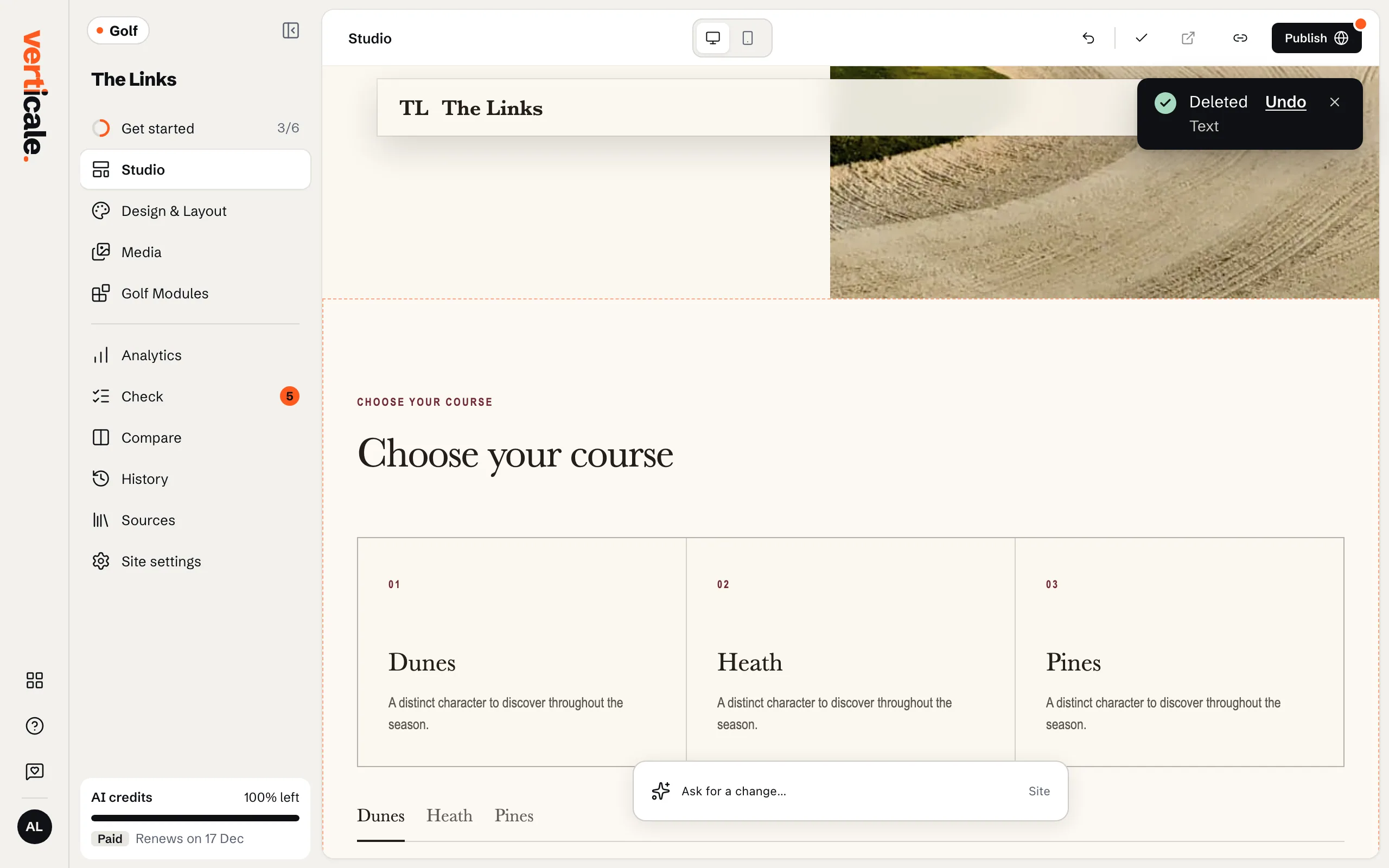
Click Delete in its bar, or press the Delete key. A message at the bottom offers Undo for a few seconds.
Bring it back later
Missed the message? Undo last change, at the top of the Studio, still brings it back.