Find your way around the Studio
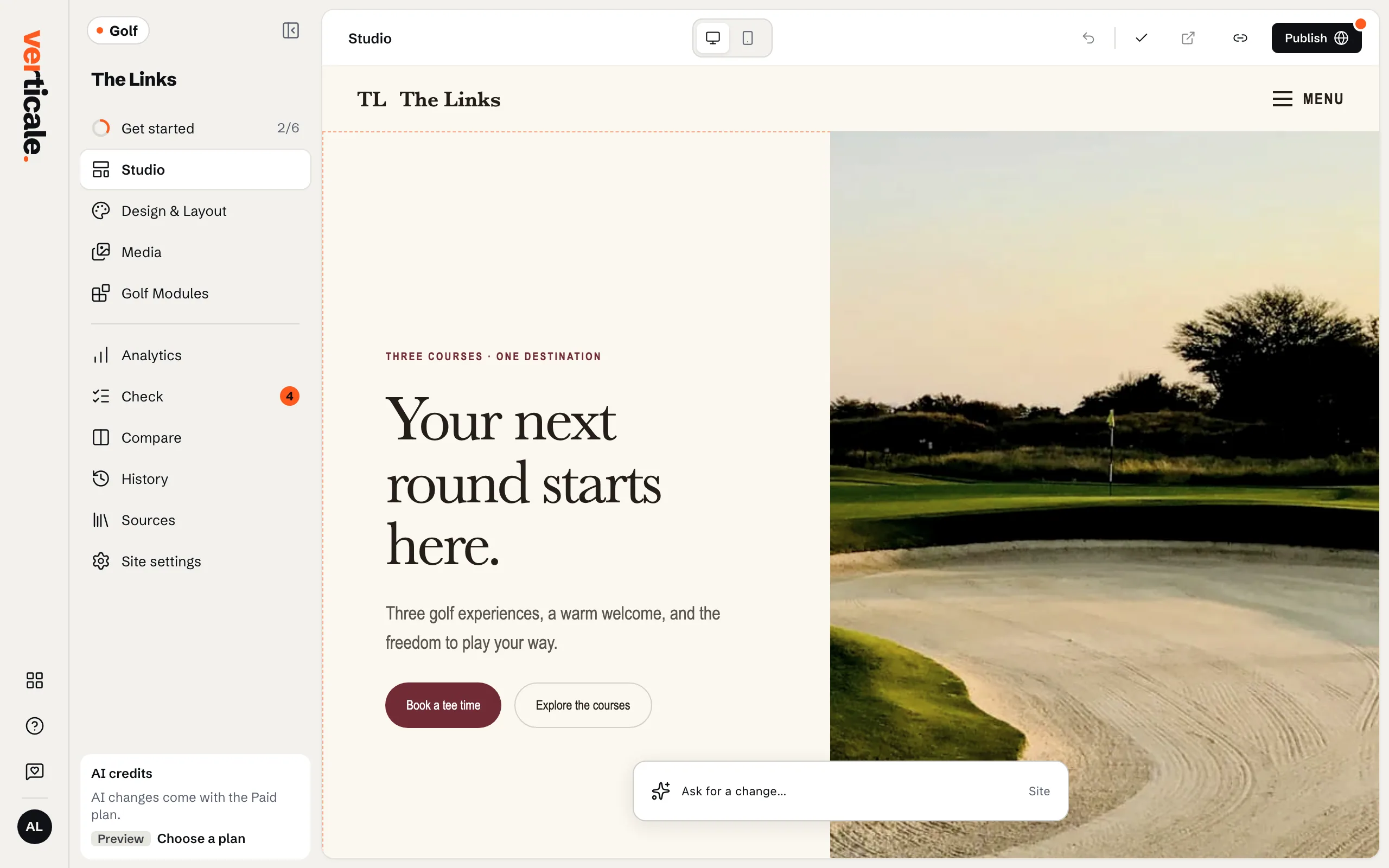
The Studio is where you change your draft and publish it. Your page in the middle, your tools on the left, Undo and Publish at the top.
1 min read · Free · Checked on 16 Nov 2026
The page in the middle
Your draft is shown as your visitors will see it. Click any text or photo on it to change it: see Edit a text in place and Replace an image. Desktop and Mobile, at the top, show it on a computer or a phone.
The tools on the left
- Get started: a short guide to your first steps, until you’ve done them. See The Get started guide.
- Studio: back to your page.
- Design & Layout: colours, fonts, header, footer and the order of your sections. See Change colours and fonts.
- Media: every photo and PDF on your website.
- Golf Modules: your courses, rates, memberships, tee times and more. See Golf clubs.
- Analytics: who visits, once you’ve published.
- Check and Compare: your new website beside your old one, until your first publish.
- History, Sources and Site settings.
At the bottom: Feedback, Help, your account and your AI credits.
The bar at the top
- Undo last change steps back one change at a time.
- Saved tells you every change is kept. Changes save as you make them.
- Share gives a private link to your draft. See Share a preview.
- Publish puts your changes online. See Publish your website.